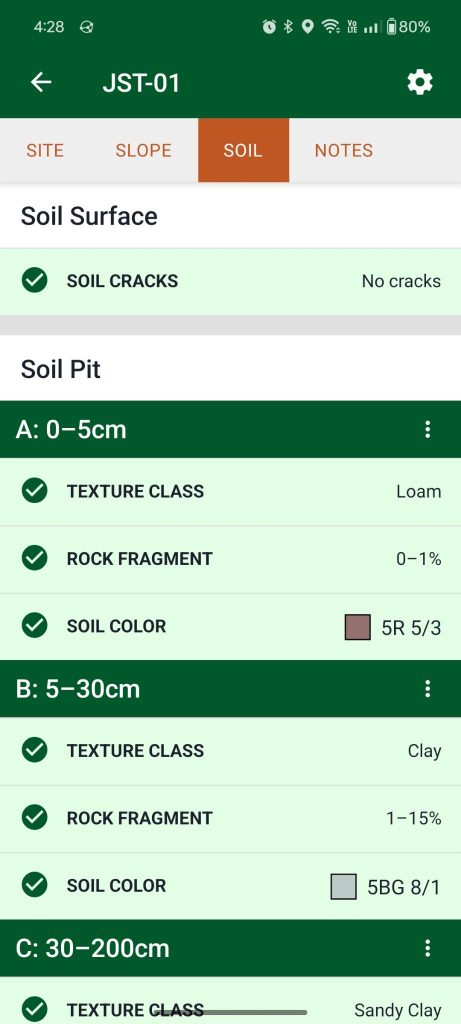
Enter observations for soil cracks, soil texture, rock fragments, and soil color on the Soil tab of the Site Dashboard.
Setting soil pit depths
Sites in projects
Sites that belong to projects inherit depth settings from the project. Depth settings can be modified on the project Inputs tab by a project manager.
Unaffiliated sites
Tap the gear button and select a preset or choose to enter “Custom” depths. Then tap Save.

Changing depths will clear previously collected data.
Depth presets
USDA NRCS
By default soil pit depths use a NRCS/GSP preset. If you don’t know how to determine soil horizons, keep this setting.
Depths
| Metric | English |
| 0–5 cm 5–15 cm 15–30 cm 30–100 cm 100–200 cm | 0–2 in 2–6 in 6–12 in 12–39 in 39–79 in |
BLM Monitoring Standard
These depths are from the BLM Monitoring Manual for Grassland, Shrubland and Savanna Ecosystems.
Depths
| Metric | English |
| 0–1 cm 1–10 cm 10–20 cm 20–50 cm 50–70 cm | 0–0.5 in 0.5–4 in 4–8 in 8–20 in 20–28 in |
Custom depths
Select this option to define depths according to the naturally occurring soil horizons.
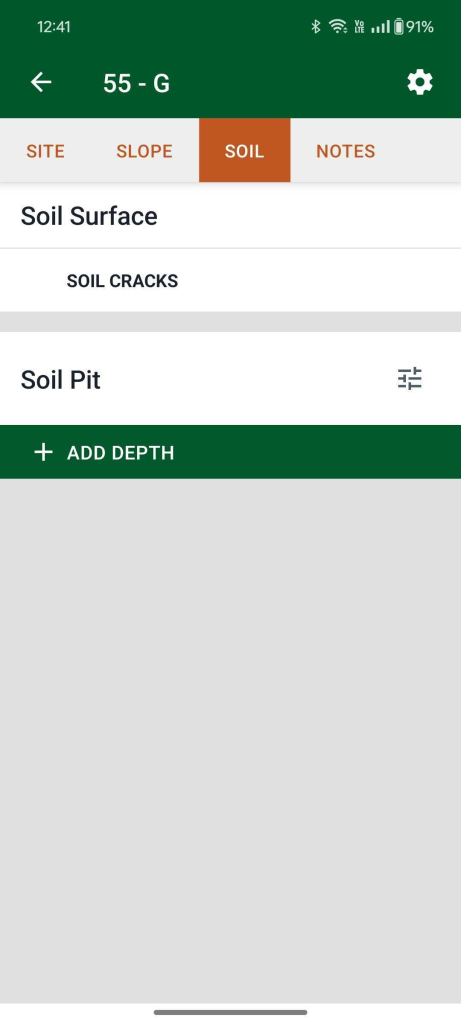
Tap the + Add Depth button to add a depth. Depths are determined by measuring down in the pit from the surface, with 0 cm/in being the surface.
Each depth consists of an optional label and a top and bottom depth. The “From” field refers to the top of the layer (the lower number), and “To” refers to the bottom of the layer (the higher number).

None specified (projects only)
A project manager may select this option to allow data collectors to enter observations at self-defined depths.
Showing and hiding soil inputs
LandPKS Soil ID, by default, shows the inputs that are relevant to the Soil ID algorithm. In some cases, you may want to hide some of those inputs or show additional ones. Tap the triple dot button on a depth heading to toggle input visibility. Toggle soil data inputs on and off for each depth interval, or choose to apply them to the whole soil pit.